
This guide sets up an internal assistant in Microsoft Teams that answers hotel questions from your own Q-Data configuration. Staff ask whether the spa opens on Sundays or what the late check-out policy is, and receive the same answer Velma would give a guest.
The guide assumes no prior experience with Copilot Studio. It should be read alongside the Quinta knowledge base article "How to set up Q-MCP?" which remains the authoritative source for access types and building blocks.
Before you begin
Confirm the following four items. Each has blocked deployments in practice.- Copilot Studio access — an account with permission to create and publish agents.
- Microsoft 365 Copilot licence — required for custom agents to appear in Copilot chat. An Upgrade prompt in the Copilot window indicates the licence is absent.
- Q-Channel access — permission to generate API keys under Q-Channel, Q-MCP.
- Tenant policy — some organisations require administrator approval before custom agents may be published. Confirm this early; approval queues can take days.
Step 1 — Create your access in the Quinta console
Open the console and go to Q-Channel, then Q-MCP.
- Select Add MCP User and enter the name and email of the person who will use the assistant.
- Give them the scopes listed below.
- In their row, under Actions, select Generate API token.
- Copy the token. It is shown once.
Important: Copy the key immediately; it is displayed once. Treat it as a credential — never paste it into chat, email, or shared documents. If a key is exposed, revoke it in Q-Channel and generate a replacement.
API key: an application connecting automatically. A website chatbot, a mobile app, a third-party integration. No individual person behind the requests.
Step 2 — Choose what the assistant can access
This step is easily missed and produces the most misleading failure in the entire process.
Q-MCP capabilities are grouped into building blocks. For a question-and-answer assistant with no booking function, enable the following.
|
Building block |
Setting |
Why |
|---|---|---|
|
Ask Velma |
✓ Required |
Provides the answers from your Q-Data. |
|
Guest sign-in & consent |
✓ Required |
Ask Velma will not respond without it. Not optional. |
|
Multi-property routing |
✓ Required |
Only if the assistant covers more than one hotel. |
|
Property photos |
ℹ Optional |
Returns images. Carries no guest data. |
|
Room availability |
! Optional |
Adds booking behaviour and creates leads in Q-Sales. |
|
Marketing consent |
! Optional |
Not needed for an information assistant. |
|
Waiting list |
! Optional |
Needs a booking engine connected by API. |
Guest sign-in is genuinely required. Ask Velma cannot run without the guest identifier it produces, whatever the question. An assistant without it will report that it cannot retrieve information. One consequence to note: a guest record is created for each conversation, including internal ones.
Step 3 — Create the agent in Copilot Studio
- Open Copilot Studio and check the correct environment is selected.
- Select Create, then New agent, and give it a name.
- Paste the instructions below into the Instructions box.
- Under Knowledge, remove Search all websites.
- Save.
Removing web knowledge is not optional. While the agent retains a general web capability it may answer hotel questions from the property website instead of Q-Data, and it will do so without any visible indication.
Instructions govern which tool the agent selects. Vague instructions are the most common reason a correctly connected server is never called. Use the following as a baseline. Replace the name in the first line, then paste the rest unchanged.
You are an assistant for [HOTEL OR GROUP NAME], backed by Quinta's MCP server.
REQUIRED FIRST STEP:
- collect-guest-info is a technical prerequisite for ask-velma, not a booking step. Call it once at the start of every conversation to obtain a clientId, then reuse that clientId for all ask-velma calls. Do this for informational questions as well as bookings.
- When calling ask-velma, always pass the same fullname, email, phone_number, language and teamId that were passed to collect-guest-info. Do not omit them even though the schema marks them optional.
- Phone numbers must be in international format with a country code.
TOOL SELECTION — follow this strictly:
- For ANY question about hotel policies, services, facilities, check-in, check-out, breakfast, parking, pets, rooms, or anything a guest might ask: use ask-velma. This is the hotel's own verified knowledge base and is the ONLY acceptable source for these answers.
- Use search-hotels ONLY to identify which hotel the user means. Never answer a policy question from search-hotels output.
- Never answer from your own knowledge, from the hotel's website, or from general reasoning.
- If ask-velma returns nothing, say "Velma has no answer configured for this." Do not substitute another source.
BOOKING TOOLS — only on explicit booking intent:
- Call get-availability ONLY when the user explicitly asks to book, reserve, or check room availability for specific dates. This restriction applies to get-availability only, never to collect-guest-info or ask-velma.
- Never include a booking link in an answer to an informational question, even if one is available.
- Never ask about marketing offers, discounts, or opt-ins unless the user raises the subject themselves.
Step 4 — Connect Q-MCP
- In the right-hand panel, select the plus icon beside Tools.
- Choose the Model Context Protocol filter, then select + Add. Ignore the servers listed — those belong to Microsoft.
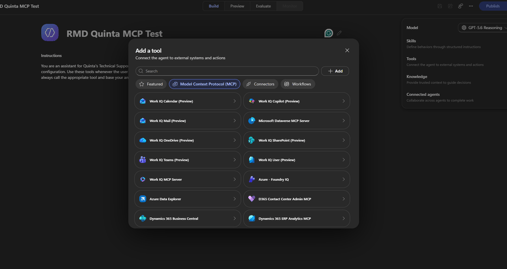
- Complete the wizard fields as below.
Field
Value
Server name
Quinta MCP
Server description
Quinta hospitality platform. Provides hotel information, Velma concierge answers, and property media.
Server URL
https://mcp-servers.quinta.im/mcp
Authentication
API key
Type
Header
Header name
Authorization
- Select Create, then create new connection. Enter the key value in this exact form:
Bearer YOUR_API_KEY
Important: The word Bearer and the following space are required. Copilot Studio transmits the header value verbatim; a raw key without the prefix returns 401 Unauthorized. This is the most frequent configuration error.
- Select Add to attach the server to the agent.
Step 5 — Switch on the tools
This step is easy to miss and causes the most confusing failures.
Open Tools, select Quinta MCP, and look at the list. Each tool has its own switch, and they default to off even when the master switch at the top is on.
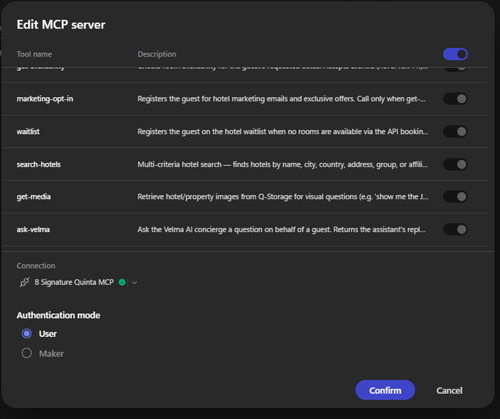
Each tool has its own switch. The master switch at the top does not enable them.
Switch on the building blocks chosen in section 2 and nothing else. Then select Confirm.
Step 6 — Check the answers are right
An assistant can be connected and answering fluently while drawing on the wrong source. This check takes five minutes and should not be skipped.
- Pick a question with a definite answer — the early check-in policy works well.
- Ask Velma the question on your website. Note the answer.
- Ask the assistant the same question in the Preview pane.
- The two answers should match, and ask-velma should appear in the reasoning trace above the reply.
If they differ, the assistant is answering from somewhere else. Check that Ask Velma is switched on and that web knowledge was removed in section 3.
Step 7 — Quinta validation
Before the assistant is used widely, Quinta checks the setup end to end: that the access covers only what was intended, that the data returned is suitable, and that a real conversation works from start to finish. Contact your Quinta representative to arrange this.
Step 8 — Publish to Teams
- Select Publish, tick Teams + Microsoft 365, and tick Make agent available in Microsoft 365 Copilot.
- Select save and publish.
- Reopen the publish dialog and use share Agent to give access to named colleagues.
Do not use the Demo Website channel. It requires authentication to be turned off, which would expose the assistant and your token to anyone with the link.
The assistant can take up to two hours to appear in Teams. Check that your own account is on the access list — agents are not always shared automatically with the person who built them.
Everyone who uses the assistant reaches Q-MCP through the same token. Where staff should have different levels of access, create separate assistants with separate MCP user tokens.
What to expect
|
Behaviour |
Explanation |
|---|---|
|
A permission card on first use |
Each person approves the connection once. Select Allow and wait. Clicking twice produces a harmless error message. |
|
A guest record per conversation |
Guest sign-in runs before the first answer, including for internal questions. |
|
Answers limited to certain hotels |
Set by the property scope on the MCP user, not by the question. |
If something goes wrong
|
Problem |
What to do |
|---|---|
|
401 Unauthorized |
The Bearer prefix is missing or duplicated, or the header is not named Authorization. Edit the connection. |
|
Answers do not match Velma |
Ask Velma is switched off, or web knowledge was left enabled on the agent. Check both. |
|
Cannot retrieve information |
Guest sign-in is switched off, or a phone number was entered without a country code. Check the switch first, then the number format. |
|
A booking link appears in a normal answer |
Room availability ran when it should not have. Switch it off, or check the booking section of the instructions is present. |
|
A tool is never used |
Confirm it is within the MCP user's scopes and switched on in Copilot Studio. |
|
The assistant is not in Teams |
Wait two hours. Then check the Microsoft 365 Copilot licence, that both accounts match, and that sharing includes you. Quit Teams from the system tray and reopen it. |
For anything not covered here, contact Quinta support. To test the connection independently of Copilot, the MCPJam inspector at mcpjam.com will connect to the same server URL and token and show exactly what is returned.
A note on your data: Velma returns answers rather than the data behind them, so your hotel information is never handed to an external AI in bulk. Guest-facing conversations begin only after explicit consent. Give each token the narrowest access the task needs, and revoke it when the person or integration is no longer active.