
The connection uses OAuth2: there is no API key or JSON file to manage. You simply sign in with your existing Quinta credentials once, and ChatGPT securely accesses only the tools you've been granted.
This article covers:
- Creating the Quinta MCP app in your ChatGPT workspace (admin step, one-time setup)
- Connecting to Quinta MCP from ChatGPT (end-user step)
- Using Quinta tools in a ChatGPT conversation
- Available tools reference
Custom connectors in ChatGPT are managed at the workspace level. An admin needs to create the Quinta MCP app once; after that, any team member can connect to it.
Step 1 — Open workspace settingsClick your workspace name in the bottom-left corner of ChatGPT, then select Workspace settings.
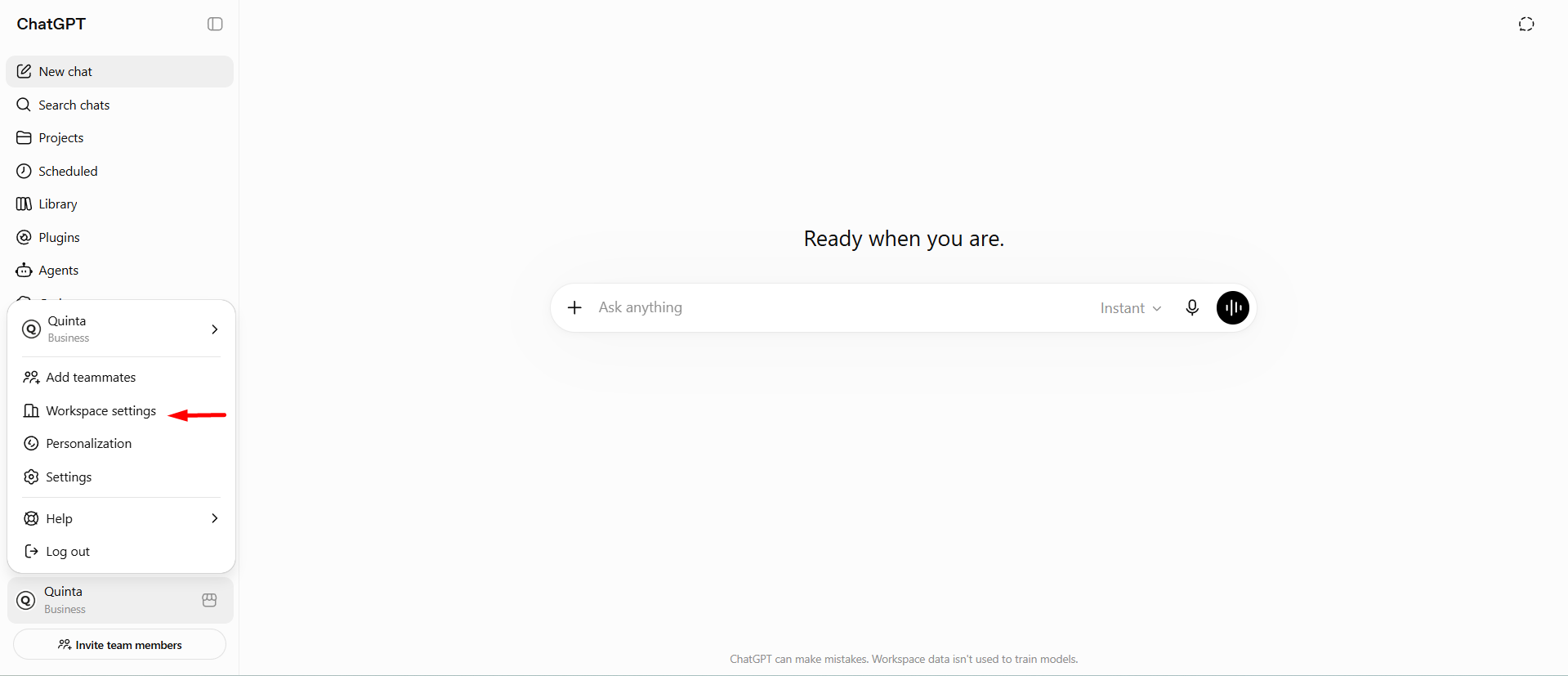
Workspace menu → Workspace settings
Step 2 — Go to Apps and start a new appIn the settings sidebar, select Apps. If this is the first custom app for your workspace, the list will be empty. Click + Create.
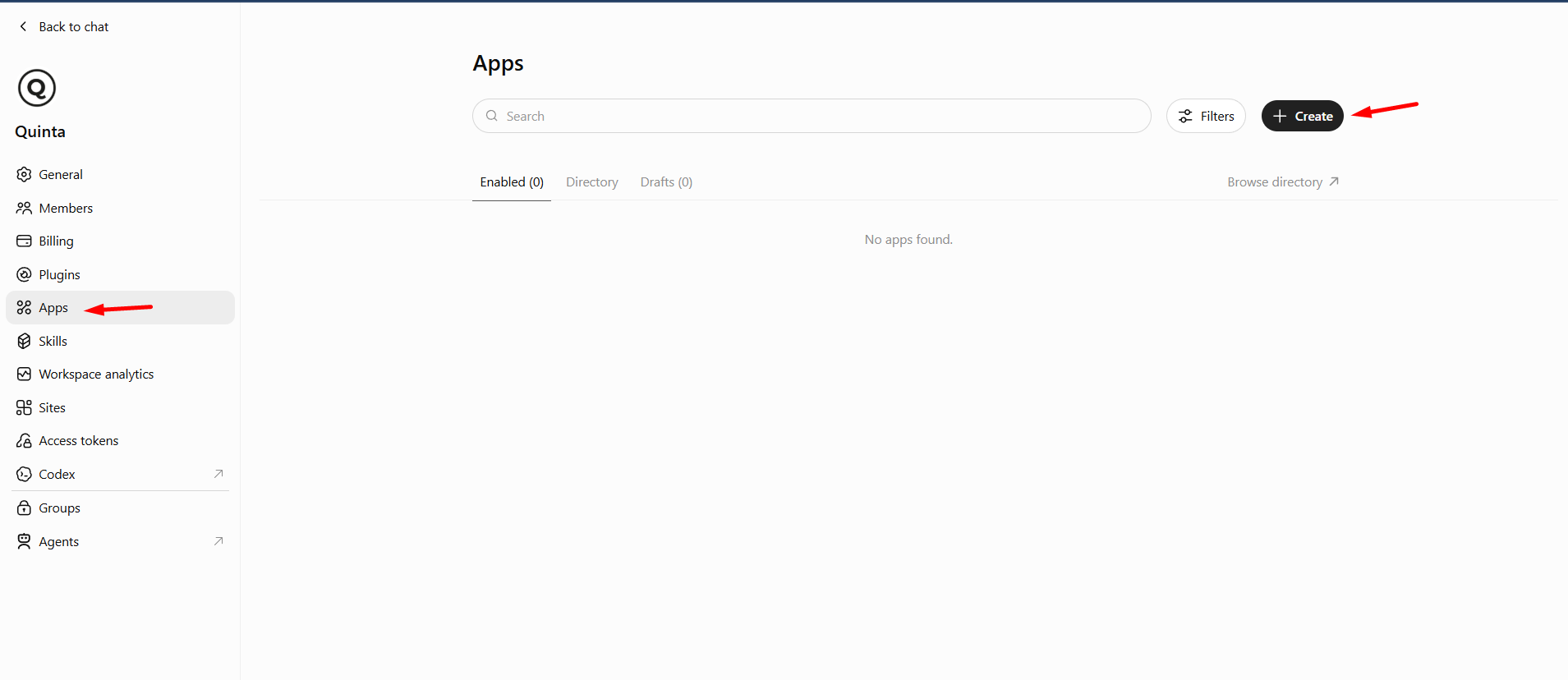
Apps page — no apps found yet, Create button
Step 3 — Enable developer modeCustom (unverified) connectors require developer mode. A warning dialog explains that developer mode lets you add connectors that could modify or erase data — click Enable developer mode to continue.
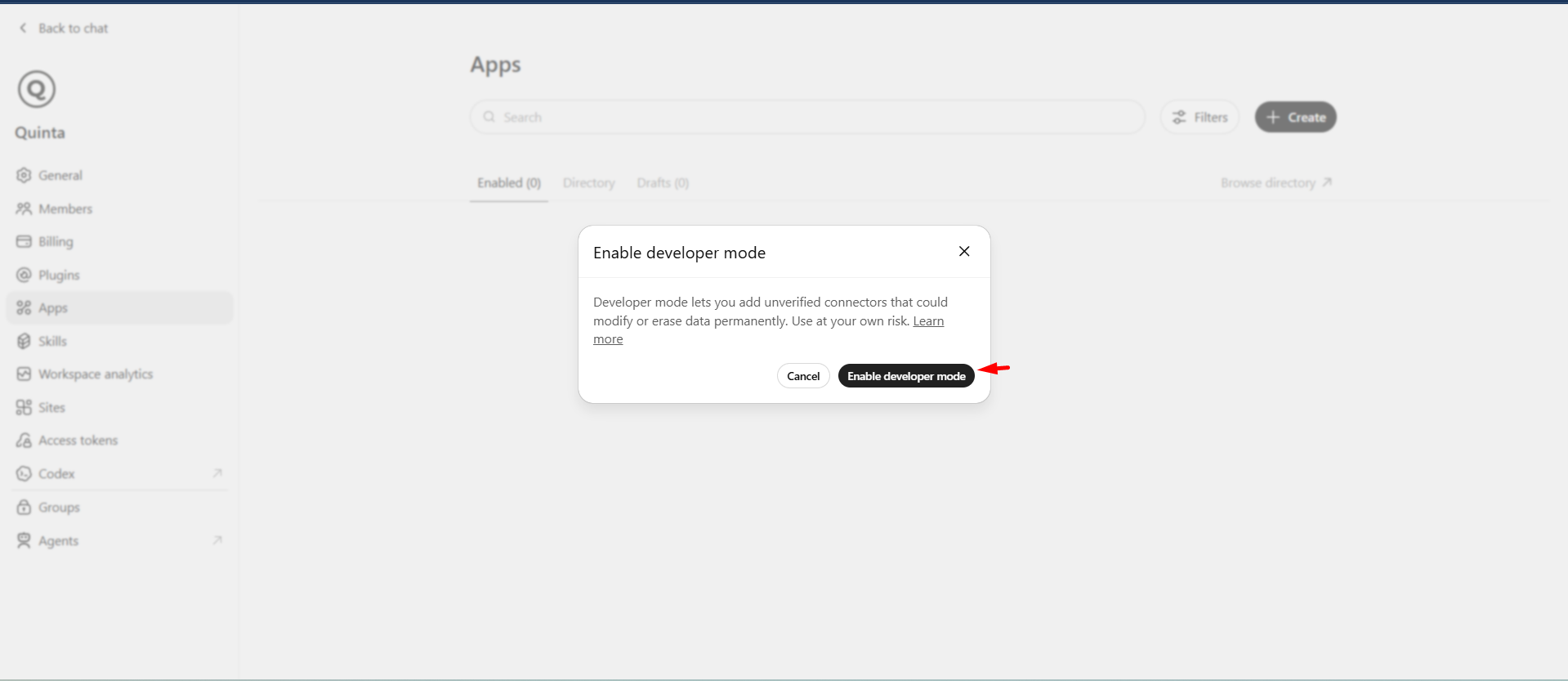
“Enable developer mode” confirmation dialog
Step 4 — Configure the Quinta MCP appIn the New App dialog, fill in:
- Name: Quinta MCP
- Connection — Server URL: https://mcp-servers.quinta.im/mcp
- Authentication: OAuth
Tick “I understand and want to continue” to acknowledge the custom-connector risk notice, then click Create.
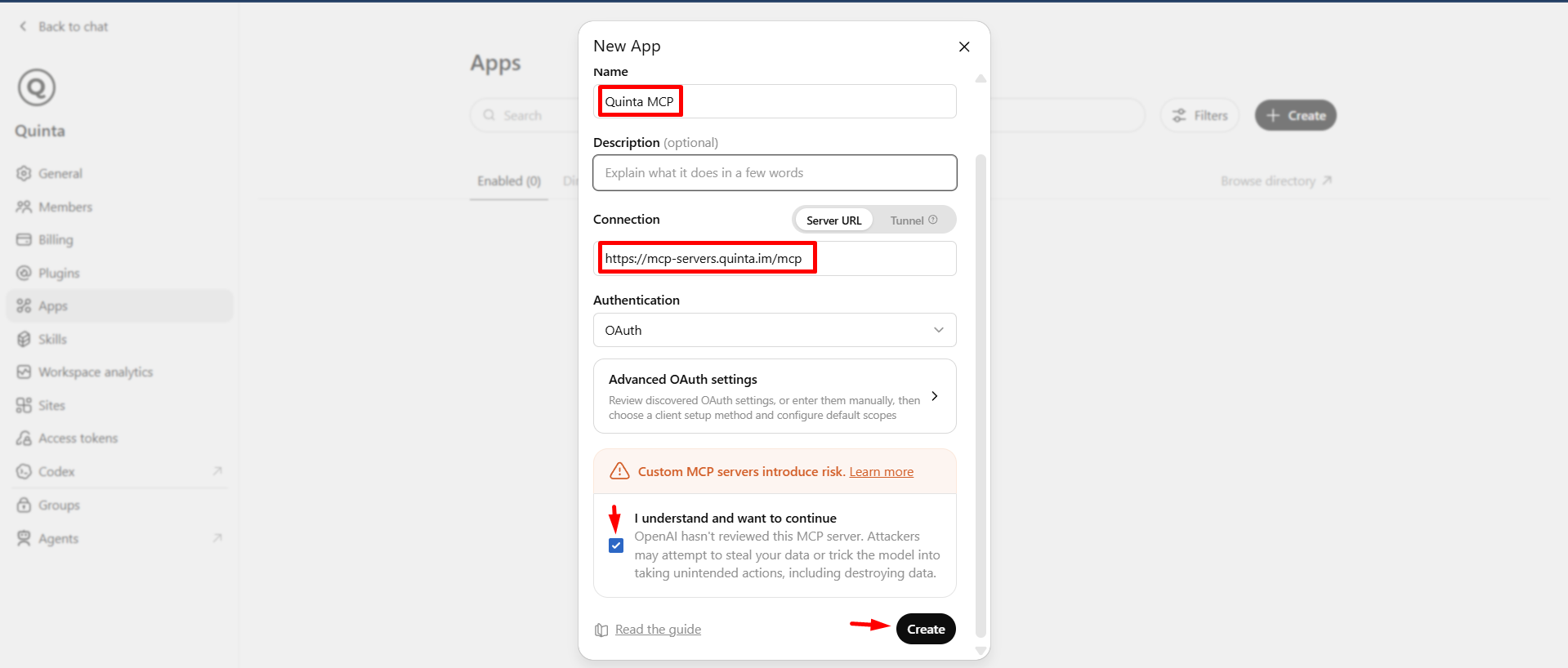
New App dialog — name, server URL, OAuth authentication
Quinta MCP is now created for your workspace and available for team members to connect to from Plugins.
2. Connect to Quinta MCP (end user)Once the app has been created for your workspace, each team member connects their own account.
Step 1 — Find Quinta MCP in PluginsOpen Plugins from the left sidebar. Quinta MCP appears under Installed.
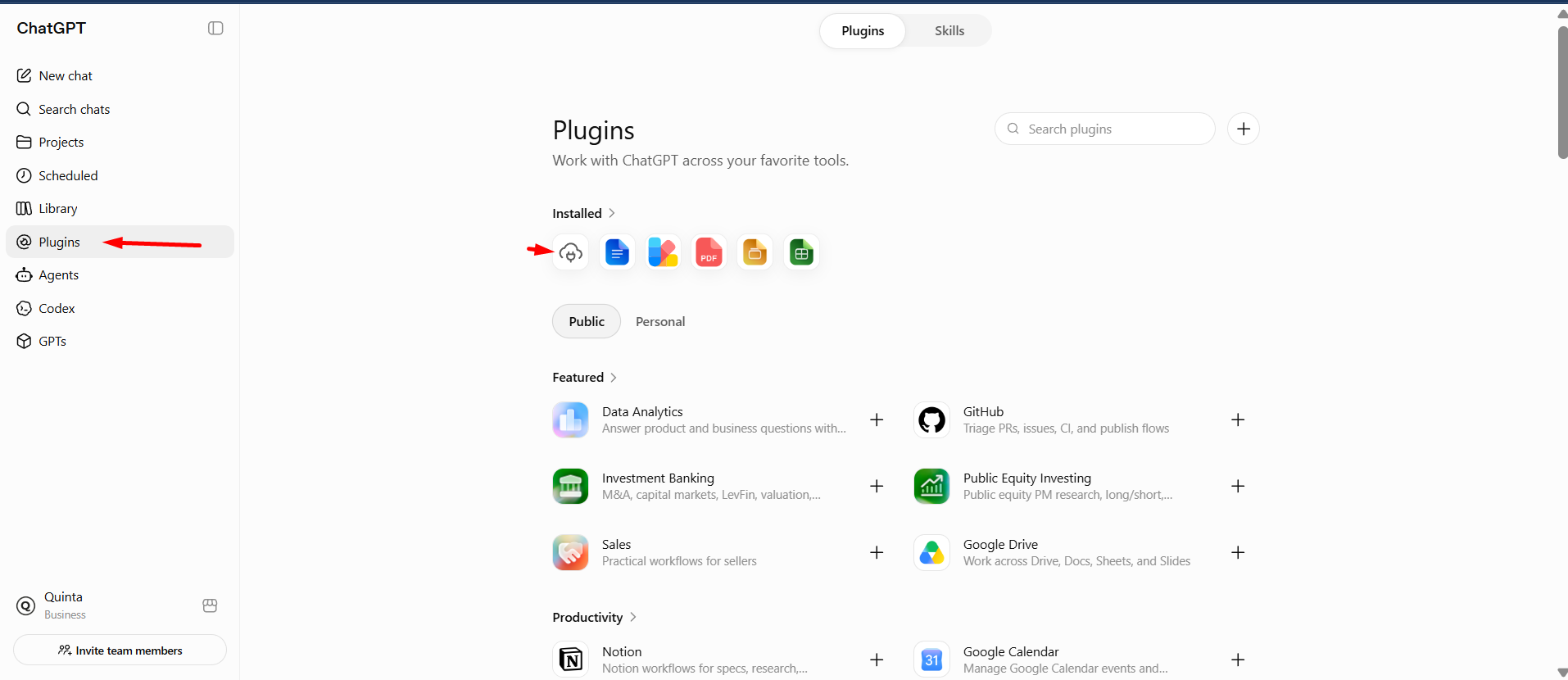
Plugins page — Quinta MCP listed under Installed
Step 2 — ConnectOpen the Quinta MCP app page and click Connect.
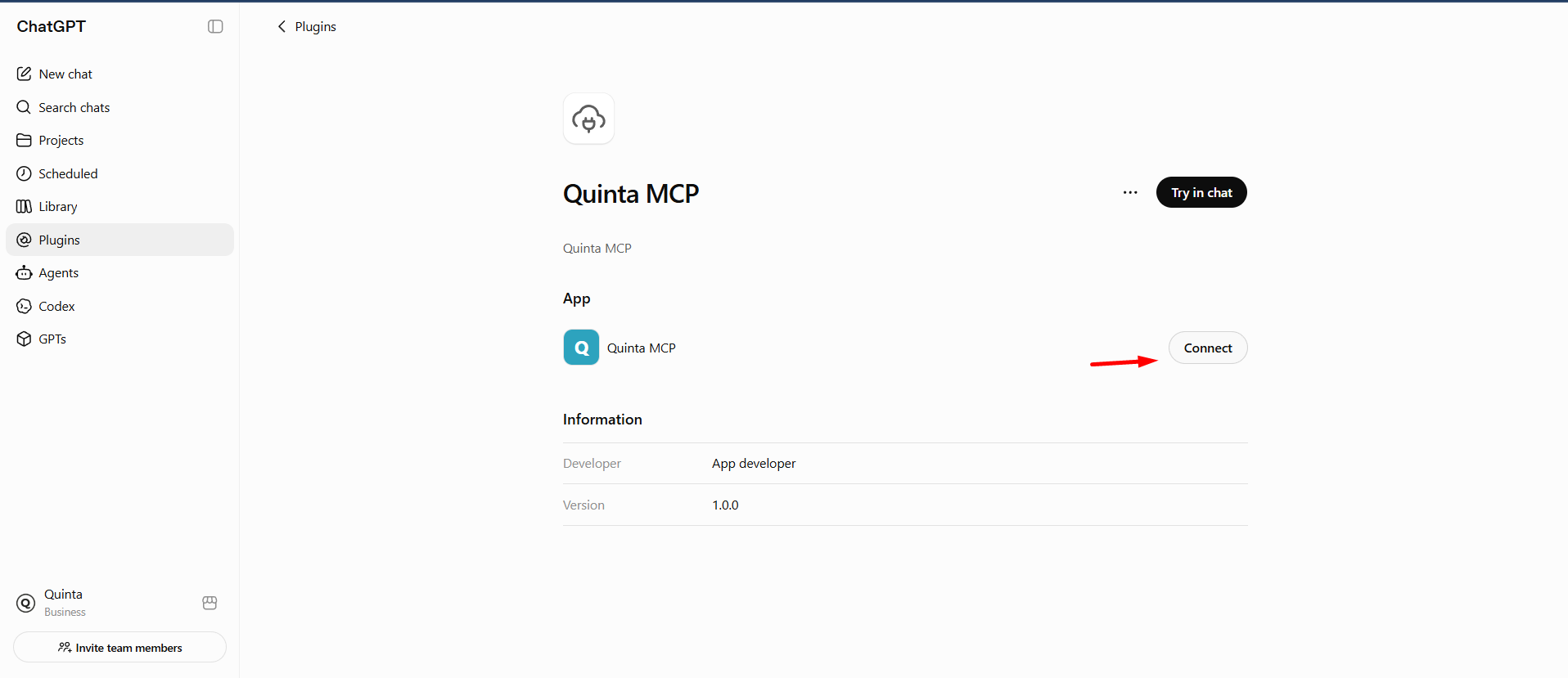
Quinta MCP app page — Connect button
Step 3 — Sign in with Quinta MCPA dialog confirms the permissions ChatGPT will have and reminds you that data is only used within the limits you've set. Click Sign in with Quinta MCP.
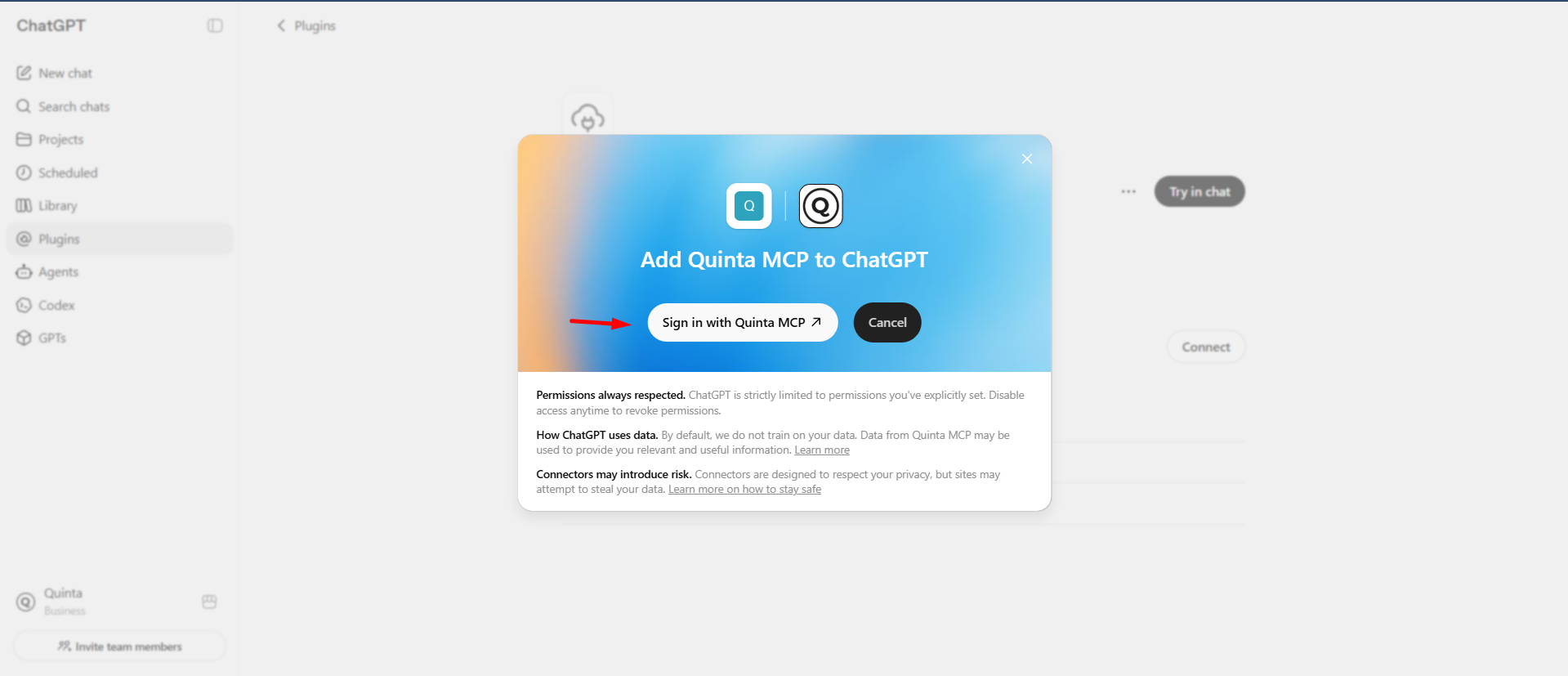
“Add Quinta MCP to ChatGPT” dialog — Sign in with Quinta MCP
You'll be redirected to the Quinta sign-in page. Log in with your Quinta email and password, or use your usual SSO option. Once signed in, you'll be redirected back to ChatGPT, and Quinta MCP will show as connected.
3. Use Quinta tools in a conversationOnce connected, simply ask ChatGPT a question related to your Quinta data, for example:
“Can you pull up the fact sheet for [hotel name] using Quinta MCP?”
You can also click Try in chat from the Quinta MCP app page to start a new conversation with the connector already active.
The first time ChatGPT uses a Quinta tool in a conversation, it will ask for your confirmation. Approve the request to let it proceed.
4. Available tools reference|
Tool |
Type |
What it does |
|---|---|---|
|
ask-velma |
Read |
Ask Quinta's guest-facing assistant a question and get the same answer a guest would receive. |
|
search-hotels |
Read |
Find properties by name, location, group, or affiliation. |
|
list-properties |
Read |
Resolve property and group IDs for use in reporting tools. |
|
get-hotel-settings |
Read |
Retrieve a hotel's operational profile: name, address, languages, contacts. |
|
get-hotel-summaries |
Read |
Get AI-generated narrative summaries of a hotel's configuration by topic. |
|
get-dialogs-list / discover-dialogs |
Read |
List and inspect amenity/policy configurations (Q-Data). |
|
get-dialog-configuration |
Read |
Check how a specific hotel has configured a given amenity or policy. |
|
update-dialog-configuration / switch-dialog-generic |
Write |
Update or share an amenity/policy configuration. |
|
list-conversations / get-messages-by-conversation / search-messages |
Read |
Browse, open, and search guest conversations. |
|
get-tags / attach-tags |
Read / Write |
View and apply QA tags to conversations. |
|
get-bookings / get-leads |
Read |
Aggregated booking and lead metrics by status, channel, source, or period. |
|
query-metric |
Read |
General-purpose Data Warehouse rollups (conversations, dialogs, contacts, etc.). |
This is not an exhaustive list — additional tools may be available depending on your Quinta subscription.
FAQ / TroubleshootingDo I need an API key?
No. The Quinta MCP connector uses OAuth2 — you just sign in with your Quinta credentials or SSO.
I don't see Apps or developer mode in my ChatGPT settings.
Custom connectors are a workspace-admin feature and may depend on your ChatGPT plan. Ask your workspace owner to create the Quinta MCP app once; after that, everyone on the team can connect from Plugins.
ChatGPT says a Quinta tool isn't available.
Check with your admin that your Quinta user has been granted access to that tool.
Can I disconnect Quinta MCP from ChatGPT?
Yes, at any time from Plugins → Quinta MCP → Disconnect. This revokes ChatGPT's access to your Quinta data immediately.