
The connection uses OAuth2: there is no API key or JSON file to manage. You simply sign in with your existing Quinta credentials (or SSO) once, and Claude securely accesses only the tools you've been granted.
This article covers:
- Granting MCP access to your team members (admin step)
- Connecting Claude to Quinta (end-user step)
- Setting tool permissions
- Using Quinta tools in a Claude conversation
- Available tools reference
Prerequisite: For Claude Team and Enterprise workspaces, adding a custom MCP connector requires Organization Owner permissions. If you're not an Owner, ask your workspace administrator to add the Quinta MCP connector. Once it's been added, you can connect your own Quinta account without needing admin privileges.
1. Grant MCP access to your team (admin)
Before a team member can connect Claude to Quinta, an admin needs to add them as an MCP user and define which tools they can access.
- In the Quinta back office, go to Q-Channel > Q-MCP.
- Under Manage Users, click Add MCP User.
- Select the user from your team list.
- Under Tool access (read), check the boxes for the tools this user should be allowed to use (see the full list in section 5).
- Click Add MCP User.
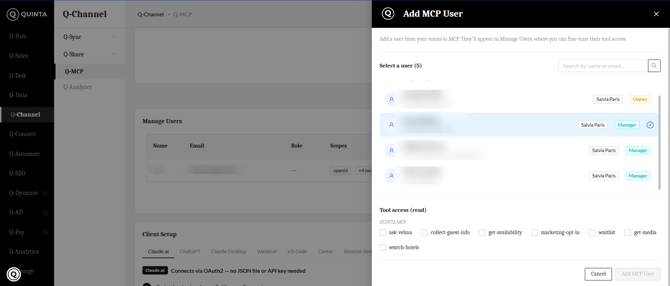
Add MCP User panel — select a team member and grant tool access
Once added, the user will appear in the Manage Users table with their assigned role and scopes. You can revisit this screen anytime to fine-tune a user's tool access.
2. Connect Claude to Quinta (end user)
Once you've been granted access, follow these steps in Claude to connect your account.
Step 1 — Open the connector menu
In Claude (claude.ai), click the + icon next to the message box, then go to Connectors.
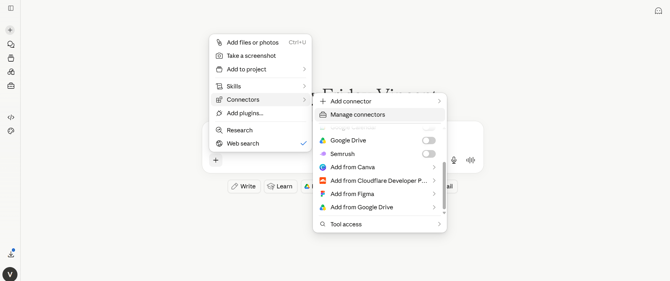
"+" menu → Connectors
Hover over Add connector to open the flyout, then select Add custom connector.
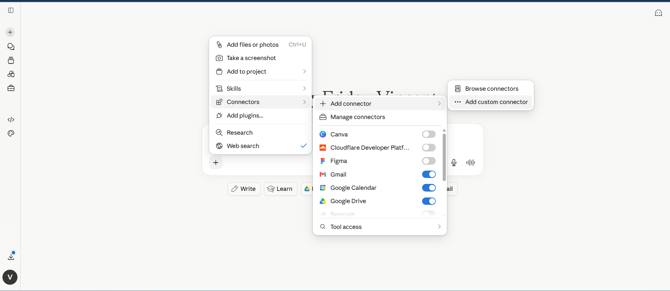
Add connector flyout → Browse connectors / Add custom connector
Step 2 — Add the Quinta connector
In the Add custom connector dialog, enter:
- Name: Quinta
- URL: https://mcp-servers.quinta.im/mcp
Leave Advanced settings (OAuth Client ID / Secret) empty — these are optional and not required for standard setup. Click Add.
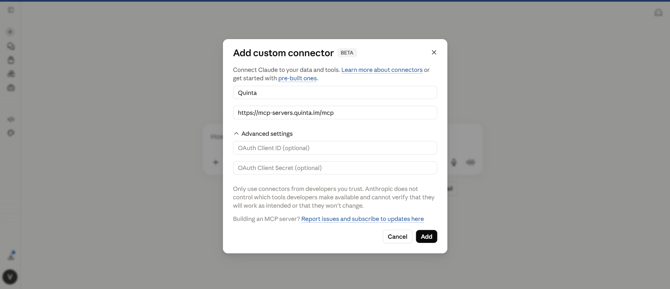
Add custom connector dialog with name and URL filled in
Step 3 — Sign in to Quinta
Quinta will now appear in your connectors list as Not connected. Click Connect.
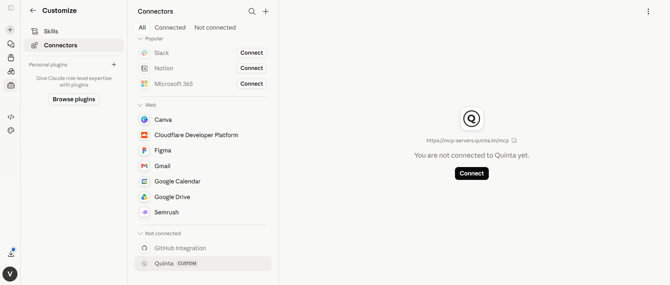
Connectors list — Quinta "Not connected" with Connect button
You'll be redirected to the Quinta sign-in page. Log in with your Quinta email and password, or use Sign in with Microsoft / Sign in with Google.
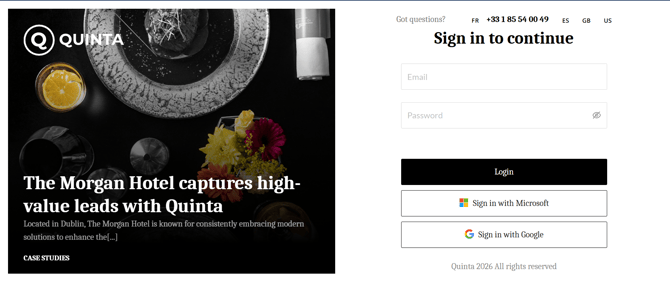
Quinta "Sign in to continue" page
Once signed in, you'll be redirected back to Claude, and Quinta will show as connected.
3. Enable the connector and set tool permissions
After connecting, you control which Quinta tools Claude is allowed to use and how much confirmation it needs before using them.
- Go to Connectors, find Quinta, and toggle it on.
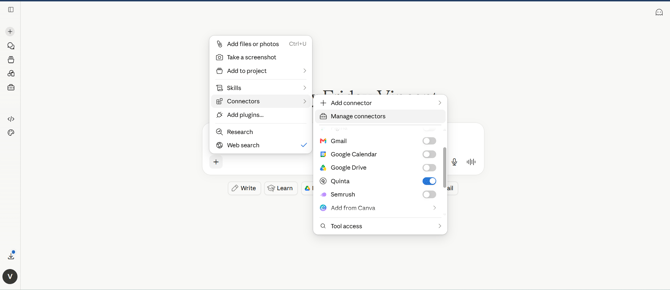
Connectors quick panel — Quinta toggled on
2. Open Quinta in the connectors panel to review Tool permissions. For each tool, choose Always allow, Ask each time (default), or Never.
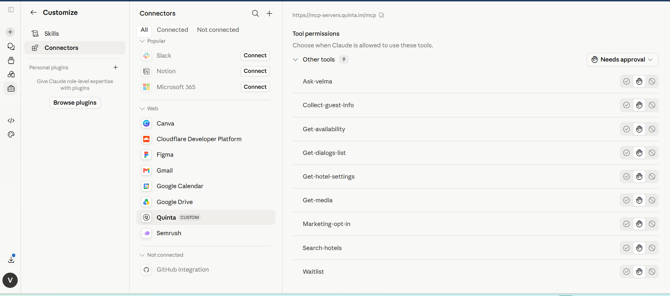
Quinta connector detail panel — Tool permissions per tool
We recommend leaving new or sensitive tools on "Ask each time" until you're familiar with how Claude uses them.
4. Use Quinta tools in a conversation
Once connected, simply ask Claude a question related to your Quinta data, for example:
"Can you pull up the fact sheet for [hotel name] using Quinta?"
If the tool is set to Ask each time, Claude will show a permission prompt before running it:
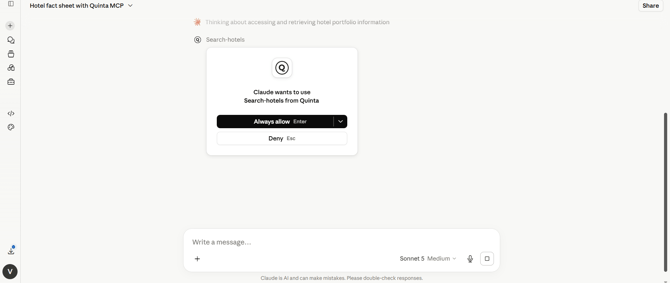
"Claude wants to use Search-hotels from Quinta" — Always allow / Deny
Click Always allow to let Claude use this tool automatically going forward, or Deny to block that specific request.
5. Available tools reference
|
Tool |
What it does |
|
ask-velma |
Sends a question directly to Velma, as if chatting with the widget |
|
collect-guest-info |
Retrieves guest information collected by Velma |
|
get-availability |
Checks room availability and rates for given dates |
|
get-dialogs-list |
Lists Velma conversations for a property |
|
get-hotel-settings |
Retrieves a hotel's configuration in Quinta |
|
get-media |
Retrieves hotel photos and media assets |
|
marketing-opt-in |
Accesses marketing consent / opt-in data collected from guests |
|
search-hotels |
Searches across your hotel portfolio |
|
waitlist |
Accesses waitlist requests |
Tool access is defined per user by your admin in Q-Channel > Q-MCP > Manage Users (see section 1).
FAQ / Troubleshooting
Do I need an API key?
No. The Quinta MCP connector uses OAuth2 — you just sign in with your Quinta credentials or SSO.
Claude says a tool isn't available.
Check with your admin that your user has been granted access to that tool under Q-Channel > Q-MCP > Manage Users.
Can I disconnect Quinta from Claude?
Yes, go to Connectors, select Quinta, and toggle it off, or remove it entirely from the connector list.
Who do I contact for help?
Reach out to your Quinta Customer Success contact, or helpdesk@quinta.im