
When to use this method
You manage several Facebook Pages and want a more stable integration.
You do not want to repeat the Facebook Login process every 60 days.
Several users work with the same Meta Business account.
Your IT or compliance team prefers a dedicated service account instead of a personal Facebook profile.
|
|
Note: The classic Facebook Login option remains available in Quinta. Existing connections do not need to be migrated.
Before you start
Full-control access to Meta Business Suite.
A second Meta business administrator who can approve the token request.
The Facebook Page you want to connect.
For Instagram: a Professional Instagram account already linked to the Facebook Page.
The Quinta App ID provided by your Quinta Account Manager or Quinta Support.
Part 1 - Generate the System User Token in Meta
Step 1 - Obtain the Quinta App ID
Quinta App ID: 1145130958875443
Step 2 - Request access to the Quinta app
Open Meta Business Suite and go to Business Settings.
Open Accounts > Apps.
Click Add and choose Request access to an App ID.
Paste the Quinta App ID and submit the request.
Inform your Quinta Account Manager so the request can be approved.
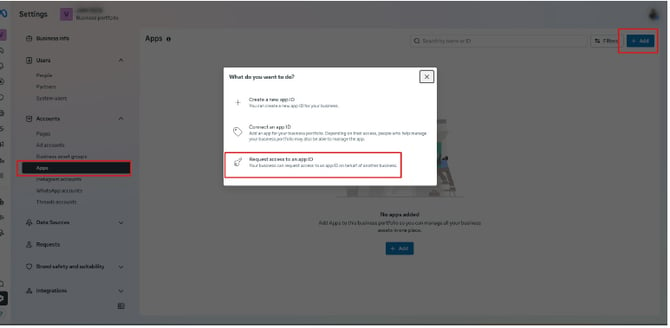
Meta Business Settings: request access to the Quinta App ID.
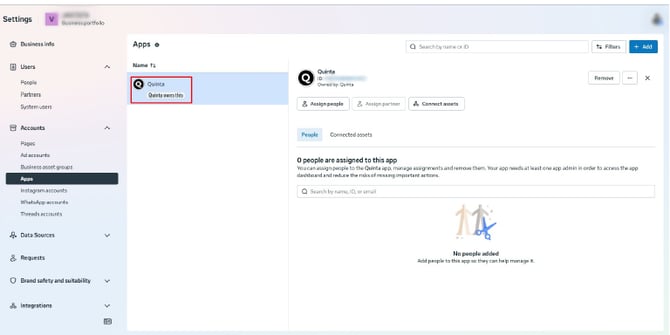
After approval, the Quinta app appears in the Apps section.
Step 3 - Create a System User
Open Users > System Users.
Click Add.
Enter a clear name, such as Quinta-integration.
Select Employee as the System User role.
Click Create system user.
|
Tip: Employee access is sufficient when the required assets are assigned with full control. You may also reuse an existing System User dedicated to integrations. |
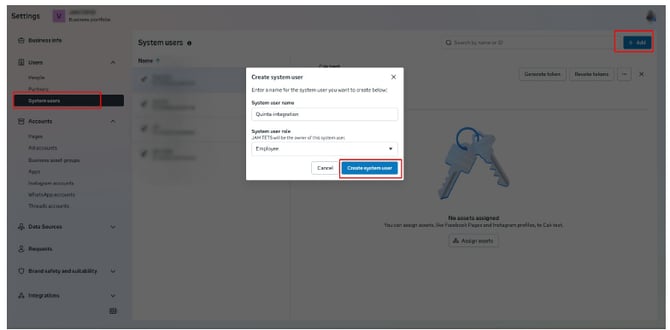
Create the System User and select the Employee role.
Step 4 - Assign the Facebook Page and Quinta app
Assign the Facebook Page
Select the System User.
Open the three-dot menu and click Assign assets.
Choose Facebook Pages and select every Page you want to connect.
Enable Full control (Business tools and Facebook).
Click Assign assets.
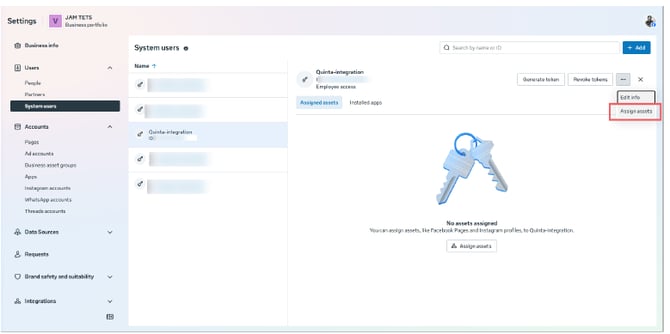
Open the System User menu and select Assign assets.
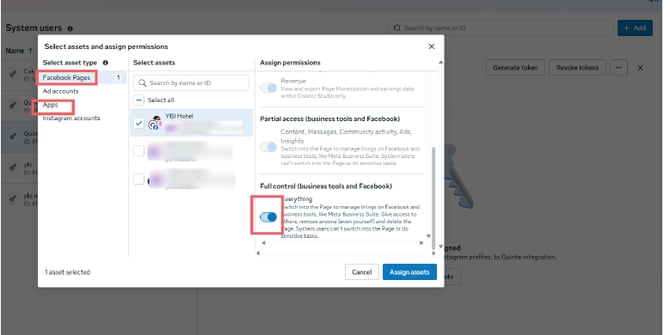
Select the Facebook Page and enable Full control.
Assign the Quinta app
In the same asset-assignment window, select Apps.
Choose Quinta or Quinta staging, according to the environment provided by Quinta Support.
Enable Manage app under Full control.
Click Assign assets.
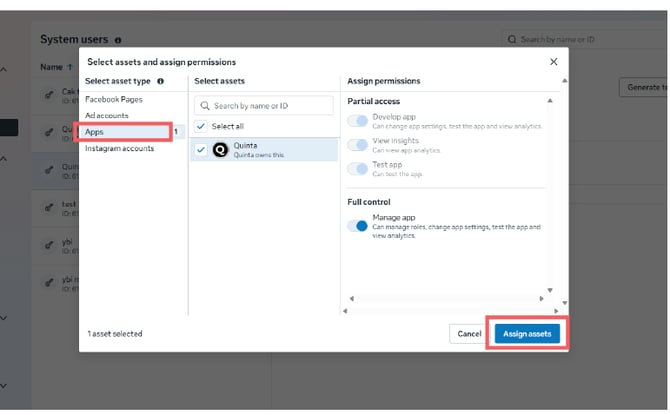
Assign the Quinta app with Manage app permission.
Step 5 - Assign the Instagram account
Skip this step when connecting Messenger only.
Open Assign assets again and select Instagram accounts.
Choose the Professional Instagram account linked to the Facebook Page.
Enable Content, Messages and Community activity permissions.
Enable Ads / Insights where available; this is recommended.
Click Assign assets.
Step 6 - Generate the token
Return to Users > System Users and select the System User.
Click Generate token.
Select the Quinta app and click Next.
For expiration, select Never and click Next.
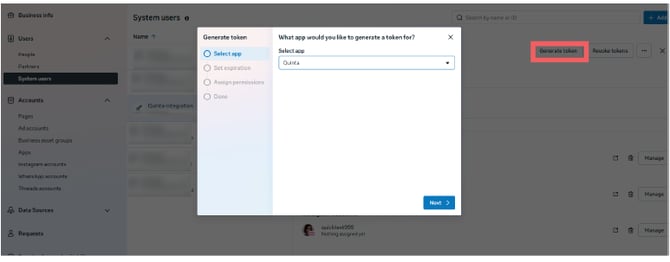
Select the Quinta app in the Generate token workflow.
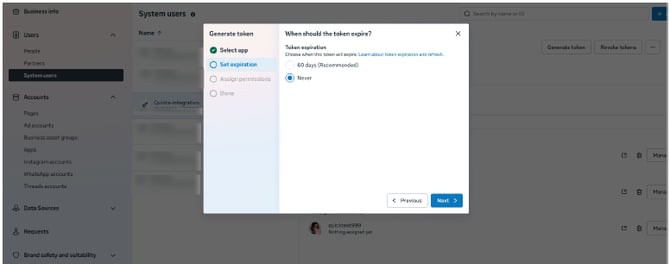
Select Never to avoid a 60-day expiration.
Step 7 - Select permissions
Use the Select permissions dropdown and search for each permission individually.
Messenger - 7 permissions
|
pages_show_list |
Instagram - 2 additional permissions
|
instagram_manage_messages |
The dropdown should show 7 selected options for Messenger only, or 9 selected options for Instagram. Then click Generate token.
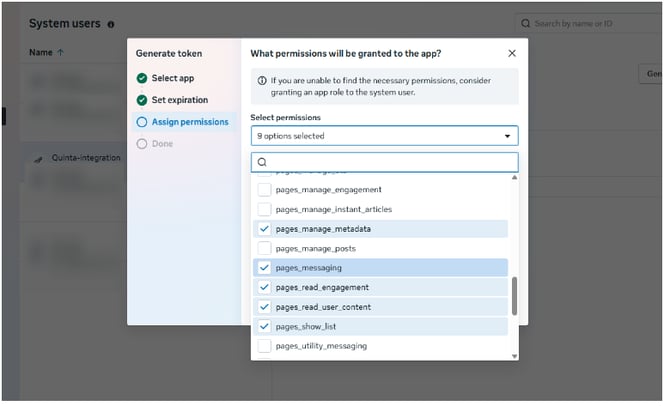
Select the required Meta permissions before generating the token.
Step 8 - Obtain approval from another administrator
Meta requires a different administrator from the same business to approve the token request. Meta automatically notifies another administrator.
Click View request to open the Requests page.
Ask another business administrator to approve the request.
After approval, return to Users > System Users.
When Access token generation approved appears, click Generate token again.
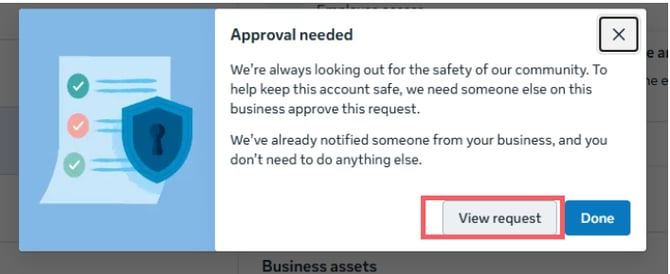
Meta displays an approval request that must be approved by another administrator.
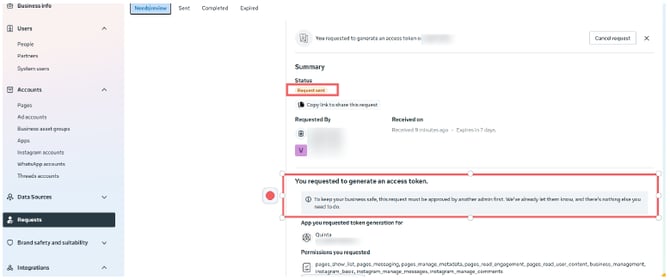
The Requests page shows the request status and permissions.
Step 9 - Copy and store the token
Click Copy when the token is displayed and store it immediately in a secure password manager. Meta will not display it again after you close the window. If it is lost, you must generate a new token.
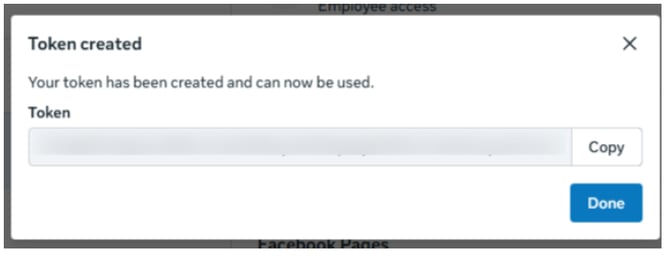
|
Security warning: Treat the token like a password. Anyone with access to it may be able to read and reply to messages on your behalf. |
Part 2 - Connect the channel in Quinta
Connect Messenger
In Quinta, open Q-Hub > Channels > Integrations.
Open the Messenger card.
Select System User Token.
Paste the token.
Click Fetch Pages.
Choose the Facebook Page from the dropdown.
Click Connect.
A green Page connected successfully notification confirms that the connection is active.
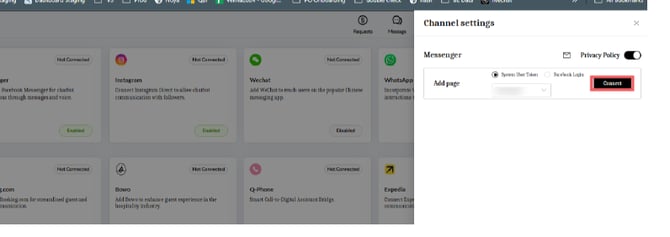
Paste the System User Token, fetch the available Pages and connect the selected Page.
Connect Instagram
Use the same procedure as for Messenger. For Instagram, select the associated Facebook Page rather than the Instagram username. Quinta automatically identifies the Instagram account linked to that Facebook Page.
Troubleshooting
|
Problem |
Likely cause |
Solution |
|
Invalid token after Fetch Pages |
The token contains extra spaces, or the System User cannot access the Quinta app. |
Copy the token again and verify that the app is assigned with Manage app permission. |
|
No pages found |
The Facebook Page is not assigned, or only Partial access was granted. |
Assign the Page again with Full control. |
|
Connected, but messages are not sent |
pages_messaging is missing, or the Page is restricted/unpublished. |
Generate the token with pages_messaging and confirm that the Page is published. |
|
Instagram connects, but no DMs appear |
The Instagram account is not Professional or is not linked to the Facebook Page. |
Switch it to Professional and link it to the correct Facebook Page. |
|
Expired badge in Quinta |
The token was generated with a 60-day expiration. |
Generate a new token and select Never. |
|
Generate token is unavailable |
The Quinta app was not assigned to the System User. |
Assign the Quinta app with Manage app permission. |
|
Approval request expired |
The seven-day approval window passed. |
Generate a new token request. |
|
Only one Page appears |
Only one Page is assigned to the System User. |
Assign all Pages that must be available in Quinta. |
|
Final check: Send a test message through Messenger or Inst |