
Script to Install
<!-- Script start -->
<script src="https://cdn-next.quicktext.im/widget.min.js" data-license="XXXXX-XXXX"></script>
<noscript>
<a href="https://www.quinta.im/" title="Hotel AI Chatbot and Guest Communication">
Quinta hotel chatbot
</a>
</noscript>
<!-- Script end -->
Important!
The value XXXXX-XXXX is a placeholder. It must be replaced with the incse ID of the hotel before publishing.
Example:
If the placeholder is not replaced with the correct incse ID, QI will not be connected properly.
Installation instructions
Insert the script:
- on all pages
- in all languages of your website
- on the mobile version too, if your website is not responsive
The script must be inserted directly in the HTML, before the closing </body> tag.
Google Tag Manager installation
If you are using Google Tag Manager, follow these steps:
- Create or edit a Custom HTML tag.
- Paste the full QI script into the HTML field.
- Enable Support document.write in the tag configuration.
- Set the trigger to All Pages.
- Save and publish the tag.
Google Tag Manager reminder
When using Google Tag Manager, make sure that Support document.write is activated before saving and publishing the tag. Otherwise, the script may not run correctly.
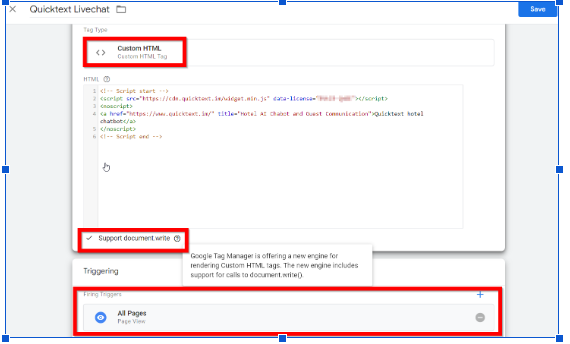
The tag should also be configured to fire on All Pages.
Validation checklist
After installation, verify that:
- the script is present on all website pages
- the script is available in all website languages
- the script is also installed on mobile, if applicable
- the
data-licensevalue contains the correct License ID - the script is placed before
</body> - QI loads correctly on the live website
- the GTM tag is published, if GTM is used
Troubleshooting
If QI does not appear:
- check that
XXXXX-XXXXwas replaced by the correct License ID - confirm the script was inserted before
</body> - verify the script is present on all pages and languages
- if using GTM, confirm Support document.write is enabled
- make sure the GTM trigger is set to All Pages
- confirm the changes were published successfully
Notes
- Keep the
<noscript>block unless there is a specific reason to remove it. - For best results, use the exact script provided without modifying the source URL.